Setting Up and Using the Slack App
StatiBeat includes a dedicated Slack admin area with connection, channel behavior, and notification controls.
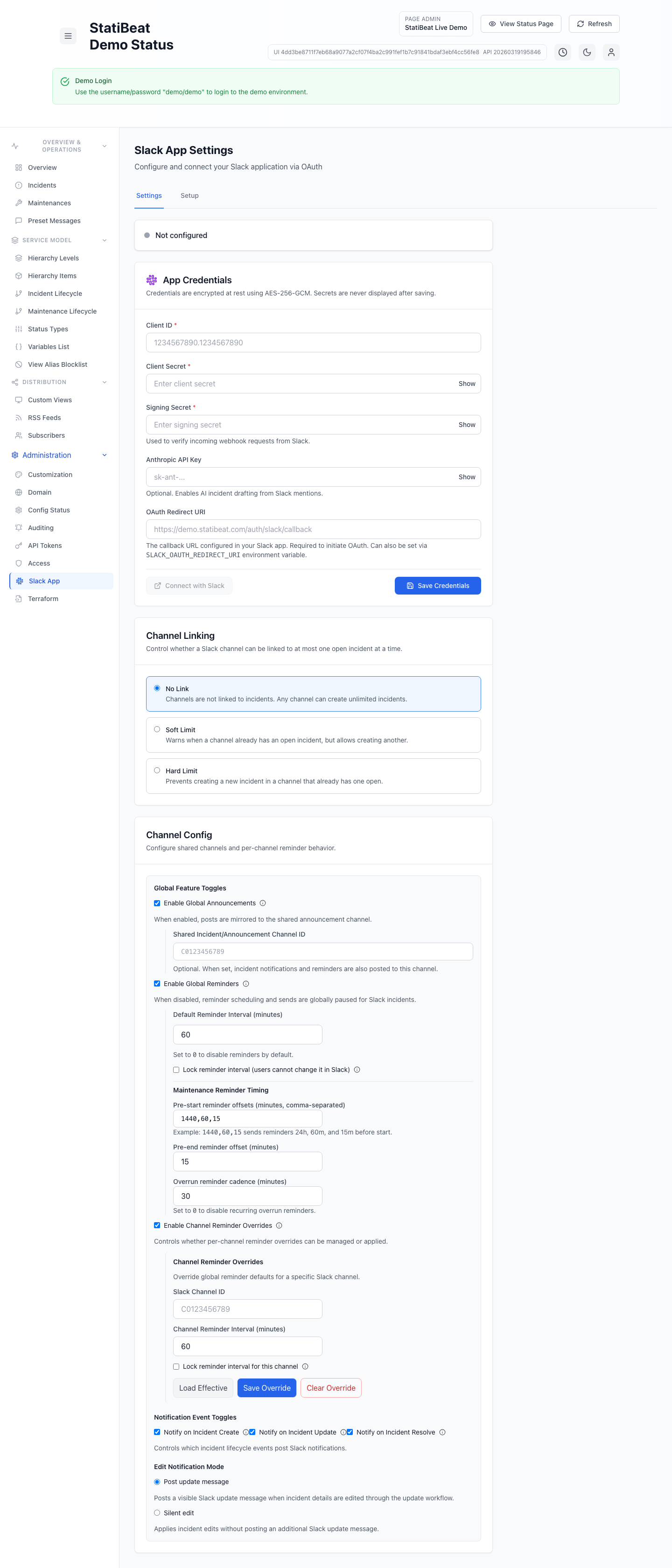
Open Slack App > Settings, click Add to Slack, and authorize the StatiBeat Slack app for the workspace.
This guide is based on the current Slack and AI settings UI in:
application/frontend/src/pages/admin/SlackSettings.jsxapplication/frontend/src/pages/admin/slackSettings/hooks/useSlackSettings.jsapplication/frontend/src/pages/admin/slackSettings/components/SlackManualSettingsPanel.jsxapplication/frontend/src/pages/admin/AISettings.jsx
What the Slack admin page contains
The current UI has two top-level tabs:
SettingsSetup
Slack app setup
In the supported hosted flow:
- the hosted app name and region are shown in the admin UI
- the connection starts from
Settings - admins click
Add to Slackto authorize the app for the workspace - you do not create a separate Slack app or paste client credentials for this page
The Setup tab is informational in this flow. It explains that the workspace connects through the managed StatiBeat Slack service and can show environment details such as:
- app name
- region
- service URL
The supported hosted flow does not require a separate Slack app per workspace.
After clicking Add to Slack, the admin completes OAuth in Slack and returns to StatiBeat when authorization succeeds.
The current Slack hook calls an OAuth initiation endpoint and then redirects the browser to the returned Slack authorization URL. On success, the UI reports that the workspace connected successfully.
The same admin screen also supports clearing the Slack configuration entirely, which disconnects the app.
Channel linking behavior
The current UI exposes three channel linking modes:
No LinkSoft LimitHard Limit
Their behavior in the UI is:
No Link: channels are not linked to incidents, and any channel can create unlimited incidentsSoft Limit: warn if a channel already has an open incident, but still allow anotherHard Limit: prevent a new incident in a channel that already has one open
Global announcement and reminder behavior
The Slack settings UI currently supports:
- a shared announcement channel ID
- global announcements toggle
- global reminders toggle
- per-channel reminder overrides
- notification toggles for create, update, and resolve events
- edit notification mode
- workflow confirmation mode for AI-thread initiated actions
If global announcements are enabled, incident notifications can also be mirrored to a shared Slack channel.
If your team runs incidents in dedicated Slack channels, the reminder and channel-link settings are worth configuring early so you do not have to clean up notification behavior later.
If global reminders are enabled, the admin can configure:
- default reminder interval in minutes
- whether the interval is locked
- maintenance pre-start reminder offsets
- maintenance pre-end reminder offset
- maintenance overrun reminder cadence
The current workflow confirmation modes are:
Ephemeral onlyReply in threadThread + channel
Those modes control what happens after someone completes a workflow from an AI thread. Slash commands and non-threaded workflows keep the standard channel behavior.
Per-channel overrides
If both global reminders and channel overrides are enabled, the UI supports per-channel reminder configuration.
The current workflow is:
- enter a Slack channel ID
- load effective settings for that channel
- save an override or clear it
The form also supports locking the reminder interval at the channel level.
AI-assisted drafting
AI provider credentials no longer live on the Slack settings screen.
Instead, the page-admin AI screen now stores the provider used for assisted workflows such as Slack incident drafting. The current AI settings surface supports:
AnthropicOpenAIOpenAI-Compatible- optional model override
- optional base URL for OpenAI-compatible providers
- encrypted API-key storage
Slack settings still controls how confirmations are posted for AI-thread initiated workflows, but the AI provider itself is configured separately from Slack app credentials.
What this guide does not claim
The current code clearly shows Slack setup, OAuth, channel-linking policy, reminder settings, and AI-thread confirmation behavior. It does not, by itself, fully document every slash-command interaction or every bot message flow, so those details should be documented separately once the Slack backend handlers are traced end to end.